How to Open 192.168.0.1 on Mobile & Tablet
How to Open 192.168.0.1 on Mobile & Tablet. Ever tried logging into your router from your phone and ended up on a Google search page by mistake? You are not alone. Most people hit a small snag the first time, but it is actually a simple process once you know the right steps.
This guide walks you through exactly how to open 192.168.0.1 on any mobile or tablet device, fix common errors, and get into your router admin panel without any confusion.
How to Open 192.168.0.1 on Mobile & Tablet
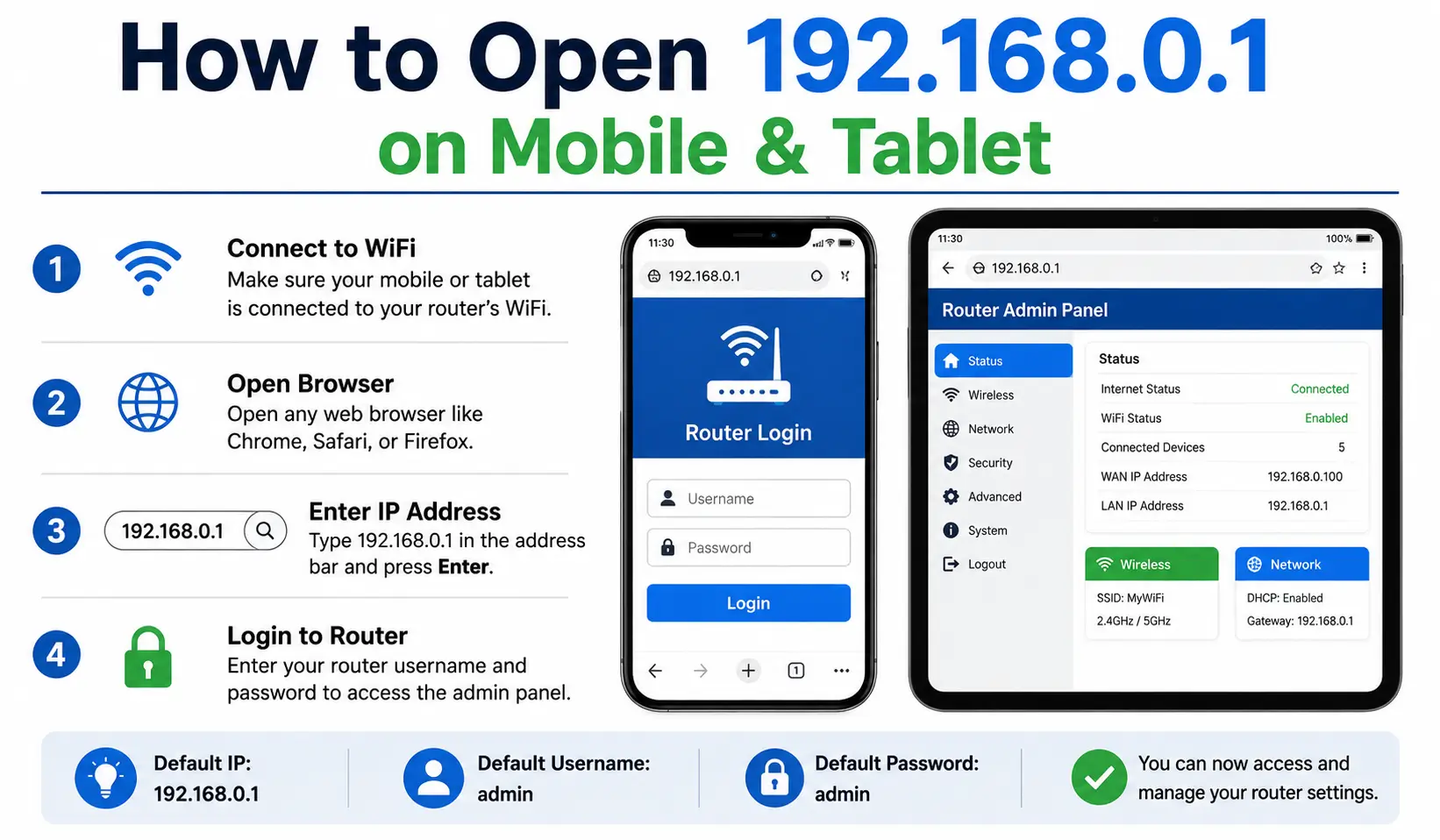
1. Connect to the Wi-Fi Network
Your device must be connected to your home network before anything else works. Here is what to do:
- Go to Settings on your device
- Tap Wi-Fi
- Select and connect to your home network
Important: If you are on mobile data or connected to an unknown network, the address will not open. This is the most common reason it fails.
2. Open a Web Browser
Open the right browser for your device:
| Device | Recommended Browser |
|---|---|
| iPhone / iPad (iOS/iPadOS) | Safari |
| Android Mobile / Tablet | Chrome or Microsoft Edge |
Crucial: Tap the URL bar at the top of the browser — not a Google search engine text box. Typing the address into a search box will only pull up random search results.
3. Type the IP Address
In the exact URL bar, type the following and tap Go or hit Enter:
http://192.168.0.1No spaces, no extra characters. The router page should load within a couple of seconds.
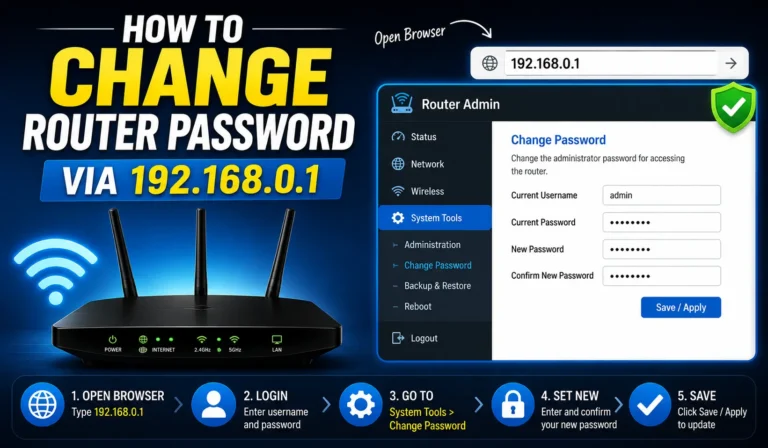
4. Enter Login Credentials
Once the router page loads, you will be prompted for a username and password. Here is how to find them:
- Flip your physical router over and check the sticker on the bottom or side
- The sticker usually has the default credentials printed on it
If nothing has been changed before, try these common defaults:
| Field | Default Value |
|---|---|
| Username | admin |
| Password | admin or leave blank |
Troubleshooting & Common Fixes
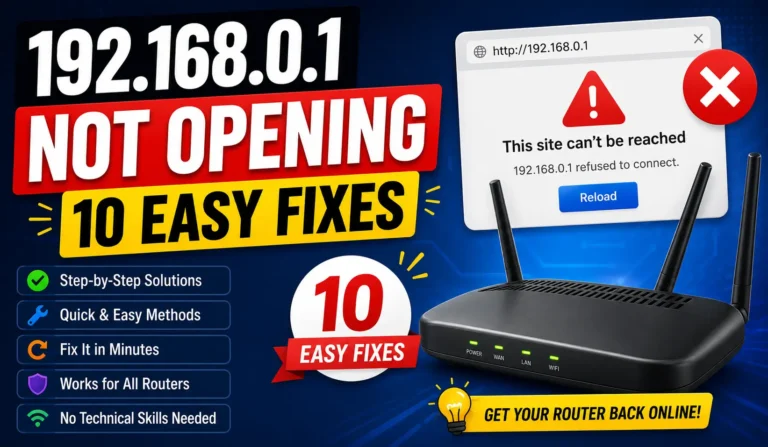
Staring at a “Site can’t be reached” error? Run through these fixes one by one:
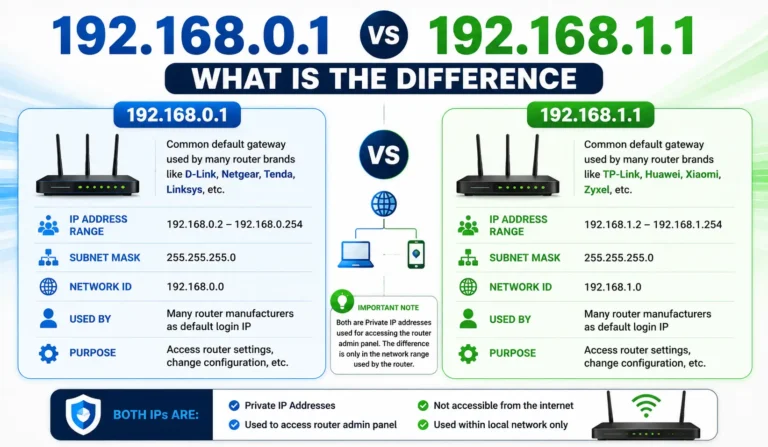
1. Verify the IP Address Not every router uses 192.168.0.1 as its default gateway. Check your router sticker for the correct one:
- 192.168.0.1
- 192.168.1.1
- 10.0.0.1
2. Turn Off Cellular Data Your mobile or tablet sometimes pushes local IP address requests through cellular data instead of Wi-Fi. To fix this:
- Switch your device to Airplane Mode
- Turn Wi-Fi back on
- Reconnect to your home network
This forces the device to stop using cellular and route everything through Wi-Fi properly.
3. Try the Manufacturer App If the browser route keeps giving you trouble, skip it entirely. Modern routers have dedicated companion apps that are honestly easier to use than the browser-based router page:
| Brand | App Name |
|---|---|
| TP-Link | Tether |
| Netgear | Nighthawk |
| Tenda | Tenda WiFi |
Search your app store for your router brand and download the official app. Available for both iOS and Android.