Best WiFi Analyzer Tools for Home Network 2026
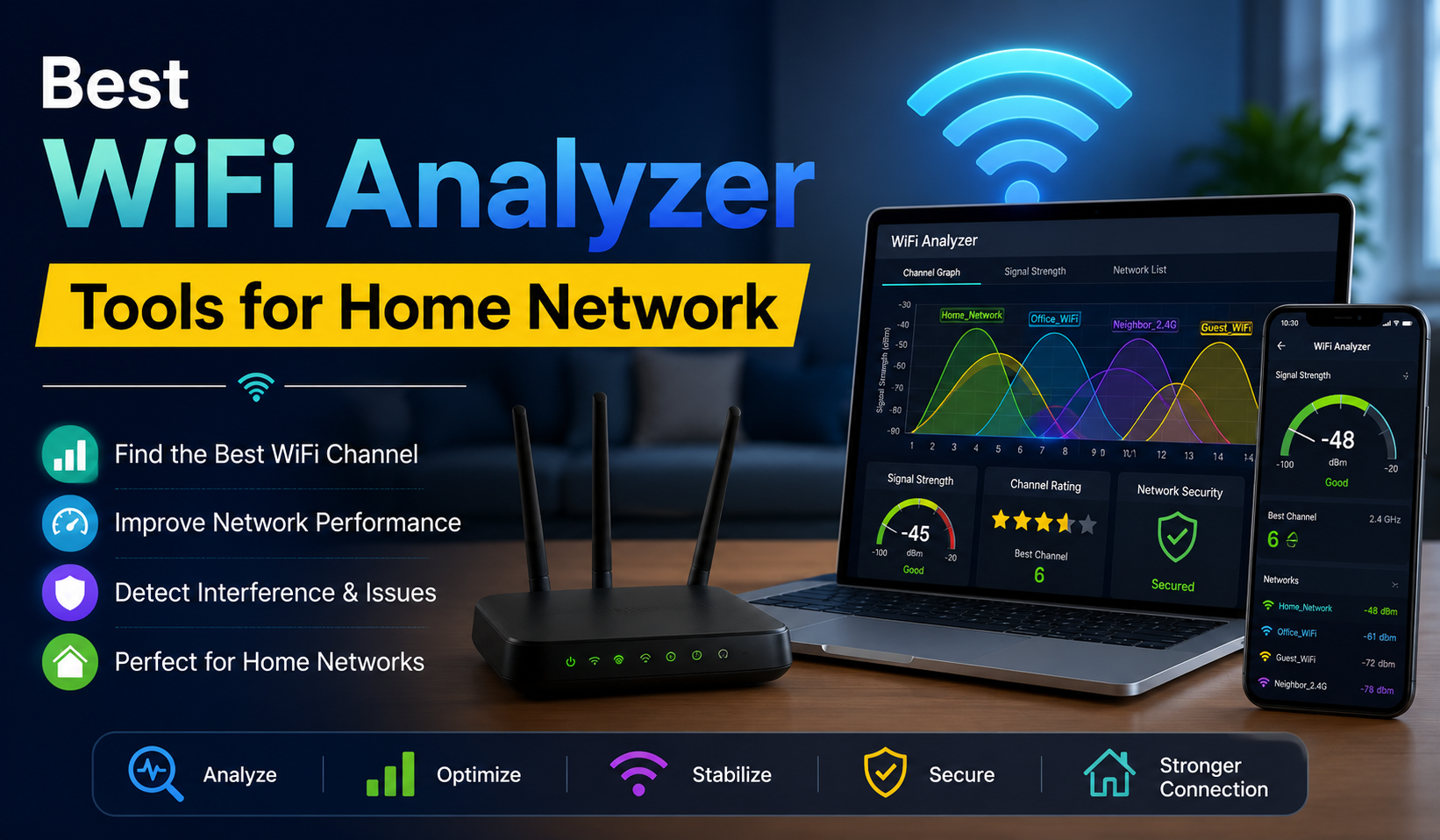
WiFi Analyzer Tools. Managing your home network shouldn’t feel like guesswork. Whether your video calls keep dropping or certain rooms just can’t seem to hold a signal, the real culprit is almost always something a good Wi-Fi analyzer could have caught in minutes.
These tools take the mystery out of wireless troubleshooting showing you exactly what’s happening with your signal, channels, and connected devices before small issues turn into full-blown network headaches. Here’s a breakdown of the best options available and what each one actually does well.
Why Do You Need Wi-Fi Analyzers?
Running a home network without a proper Wi-Fi analyzer is like driving blindfolded you might be moving, but you have no idea what’s coming. I learned this the hard way after spending weeks chasing an intermittent dropped connection, only to discover a neighboring access point was bleeding interference directly into my primary channel.
Distributed networks even at home are far more complex than they appear. Slow data transmissions, interrupted network connections, and high external noise don’t announce themselves politely. They creep in quietly before you even notice. A reliable Wi-Fi analyzer gives you the ability to:
- Track and monitor signal strength, uptime, availability, and hardware health from a centralized console
- Detect and resolve emerging network issues before they snowball into major disruptions
- Build custom maps of your Wi-Fi environment to visually diagnose and pinpoint coverage gaps
- Monitor access points and network connectivity continuously without manual checks
Without these tools, even a modest home or organizational network becomes genuinely challenging to manage. The shift from reactive troubleshooting to proactive network management is what makes a Wi-Fi analyzer worth every penny.
Wi-Fi Analyzer Tools
ManageEngine OpManager
If you need complete control over large-scale wireless infrastructure, OpManager sits comfortably at the top of the list. It delivers deep insights into critical networking aspects through a layered monitoring approach that most tools simply gloss over.
Here’s what its built-in monitors cover:
| Monitor Type | Metrics Tracked |
|---|---|
| Signal Monitors | SNR, SNR between access point and client device, signal strength |
| Network Utilization | Connected clients, 5GHz user count, 2.4GHz user count, active clients |
| Network Traffic | Bytes transmitted, bytes received, transmission rate |
| Network Resources | CPU utilization, memory utilization, system uptime |
Topping it all off, OpManager’s AI-based troubleshooting capability means the tool doesn’t just surface issues it actively helps you detect and troubleshoot them, making it a genuinely intelligent Wi-Fi analyzer for IT infrastructure of any size.
Wireshark: Packet Analysis
Wireshark is the tool professionals reach for when a problem refuses to show its face through conventional monitoring. It’s a powerful packet sniffing and general network analysis platform, and its value in deep wireless network troubleshooting is well established.
- Select your wireless interface, start listening to traffic, and sift through packets and headers
- Generate a capture file and save it for later investigation
- Logs data in standard tcpdump formats covering TCP, UDP, ARP, and DHCP
That said, Wireshark demands a solid grasp of deep-level networking concepts. Its effectiveness in capturing Wi-Fi traffic can also be constrained by your NIC and operating system on some platforms, additional configuration is required and full support isn’t always guaranteed.
Kismet: Packet Analysis
Kismet occupies a fascinating niche in the Wi-Fi toolkit. As a free, open-source packet sniffing platform, it goes well beyond what most wireless analyzers offer particularly when hunting for hidden networks or non-broadcasting SSIDs lurking in your environment.
| Feature | Details |
|---|---|
| Operation Mode | Passive no digital traces left behind |
| Platform Support | Linux (preferred), macOS, Windows (limited) |
| Detection Range | Wi-Fi, Bluetooth, other radio protocols |
| Architecture | Standalone and multi-client server mode |
| Packet Support | TCP, UDP, ARP, DHCP logs in tcpdump format |
Kismet heavily uses RFMON, which is why Linux is the preferred platform the combination is lightweight and runs fast. Its web-based graphical interface now provides real-time visualization of detected networks and devices, and its multi-client setup lets multiple installations feed captured data packets back to a central server for deeper analysis.
Wi-Fi Heat Maps: Acrylic Suite
There’s a category of Wi-Fi problem that packet sniffers simply can’t solve coverage gaps, dead zones, and poorly positioned access points. For that, you need heat maps, and Acrylic Wi-Fi Heatmaps is one of the most capable professional tools in that space.
- Define buildings and floors using a floor plan or blueprint
- Mark access point positions manually if GPS coverage is poor inside the building
- Analyze signal quality and interference across every area of your space
- Generate comprehensive enterprise reports for planning future networks
- Supports Wi-Fi 7 and multiple Wi-Fi standards
Pricing is flexible too, with affordable monthly plans and perpetual licenses available making Acrylic accessible for both lean teams and larger organizations with advanced network planning needs.
Channelizer 6 by MetaGeek
Most Wi-Fi analyzers operate within the Wi-Fi ecosystem. Channelizer 6 goes a step further, venturing into the full RF spectrum to catch interference sources that standard tools miss entirely.
- Pairs with WiPry Clarity Spectrum Analyzer hardware or the legacy Wi-Spy DBx
- Directional antenna lets you physically hunt down rogue signals from electronics and electrical equipment
- Real-time visualization of RF activity across all channels
- Professional reporting tools make it easy to document findings and communicate root causes
Plenty of bad areas in buildings where Wi-Fi isn’t working properly have nothing to do with channel overlap the culprit is often non-Wi-Fi interference from unexpected sources. For advanced troubleshooting, Channelizer’s detail is unparalleled, though the hardware purchase does raise the entry cost.
NetSpot: Wi-Fi Survey and Troubleshooting
NetSpot is the tool I’d confidently hand to someone walking into wireless troubleshooting for the first time without worrying they’d feel overwhelmed. Its user-friendly interface masks a genuinely capable engine underneath.
- Load your floor plan, walk your space, and collect real-time data automatically
- Heat maps show signal strength, interference, and dead zones at a glance
- Channel analysis identifies overcrowded channels and signal interference
- Works on both macOS and Windows
The balance NetSpot strikes between simplicity and advanced functionality is genuinely rare in this category making it practical for beginners and IT professionals alike.
Track Crucial Performance Metrics with a Wi-Fi Analyzer Software
Optimal Wi-Fi performance doesn’t fail dramatically it degrades quietly. Packet loss creeps up. Response time stretches. SNR slips below useful thresholds. By the time users start complaining, the metrics have been misbehaving for hours.
OpManager’s built-in network monitors keep every critical layer visible:
| Monitor Type | What It Tracks | Why It Matters |
|---|---|---|
| Signal Monitors | SNR, signal strength, access point-to-client SNR | Ensures uninterrupted signal quality |
| Utilization Monitors | Connected clients, 5GHz/2.4GHz user count, active clients | Reveals load on Wi-Fi components |
| Traffic Monitors | Bytes transmitted/received, transmission rate | Tracks real throughput across the network |
| Resource Monitors | CPU utilization, memory utilization, system uptime | Confirms hardware is healthy and not bottlenecking |
The sheer size of organizational networks makes manual metric tracking impractical. This is precisely where a dedicated Wi-Fi analyzer software earns its place turning a sprawling, unmanageable monitoring task into something automated and reliable.
Discover, Monitor, and Analyze Wi-Fi Components
A Wi-Fi network is only as reliable as the components holding it together. In large organizations, keeping track of access points, wireless LAN controllers (WLCs), and hundreds of client devices manually simply doesn’t scale.
OpManager handles this through automated discovery, classification, and inventorying of Wi-Fi components:
- Newly discovered devices are automatically classified and assigned predefined device templates
- Templates immediately attach the right set of monitors to each component
- WLC response time, availability, and packet loss metrics are tracked without manual setup
- The entire process runs continuously, ensuring uninterrupted Wi-Fi networking across your infrastructure
Expedite Network Troubleshooting with Adaptive Thresholds
Knowing a problem exists is only useful if you find out immediately. A Wi-Fi analyzer that surfaces threshold violations hours after the fact isn’t protecting your uptime it’s just documenting your downtime.
OpManager’s adaptive threshold system works like this:
- Network monitors continuously scan your wireless network for threshold violations
- The moment a violation is detected, instant alerts fire through SMS or email
- Alerts reach the right people before emerging issues escalate into major network disruptions
- The troubleshooting process begins immediately, keeping uptime where it needs to be
This reliable, automated detection removes the guesswork entirely and that’s exactly what separates proactive network management from reactive damage control.
The Best Wi-Fi Analyzers: A Comparison Guide
Wireshark vs. Kismet
| Feature | Wireshark | Kismet |
|---|---|---|
| Wired Network Support | Yes | No |
| Wi-Fi Focus | General analysis | Dedicated Wi-Fi |
| Operation Mode | Active | Passive (no digital traces) |
| Live Analysis Tools | Limited | Strong |
| Hidden SSID Detection | No | Yes |
| Packet Logging | tcpdump format | tcpdump format |
| Cost | Free | Free |
Winner: Kismet for active wireless analysis, its live toolset and passive interception approach make it the more versatile choice.
NetSpot vs. Acrylic Wi-Fi Heatmaps
| Feature | NetSpot | Acrylic Wi-Fi Heatmaps |
|---|---|---|
| Primary Use | Survey and troubleshooting | Planning and site surveys |
| Ease of Use | Beginner-friendly | Moderate learning curve |
| Platform | macOS and Windows | Windows |
| Heatmap Generation | Yes | Yes |
| Enterprise Reporting | Basic | Advanced |
| Pricing | Free and paid tiers | Monthly plans and perpetual licenses |
Winner: NetSpot for simplicity / Acrylic for advanced network planning
Wi-Fi Analyzer Tool vs. Channelizer
| Feature | Wi-Fi Analyzer Tool | Channelizer 6 |
|---|---|---|
| Cost | Free | Paid (hardware required) |
| Spectrum Analysis | No | Yes |
| Non-Wi-Fi Interference Detection | No | Yes |
| Channel Overview | Yes | Yes |
| Best For | Casual users | Advanced troubleshooting |
Winner: Channelizer unmatched detail for professional-grade wireless troubleshooting.
The Right Wi-Fi Analyzer for the Right Job
No single tool handles every Wi-Fi scenario and that’s not a flaw, it’s just the nature of specialized software. Installation, troubleshooting, spectrum analysis, heat mapping each scenario pulls from a different part of the toolkit.
Learning which tool fits which job genuinely comes with practice and hands-on experience. The options covered here aren’t exhaustive either there are hundreds of alternatives out there, each designed with specific roles in mind. As you build experience, you’ll develop your own favorites tools you reach for instinctively because they’ve proven themselves in real situations.