D-Link Router Login Guide: Find Default IP, Password & Admin Access 2026
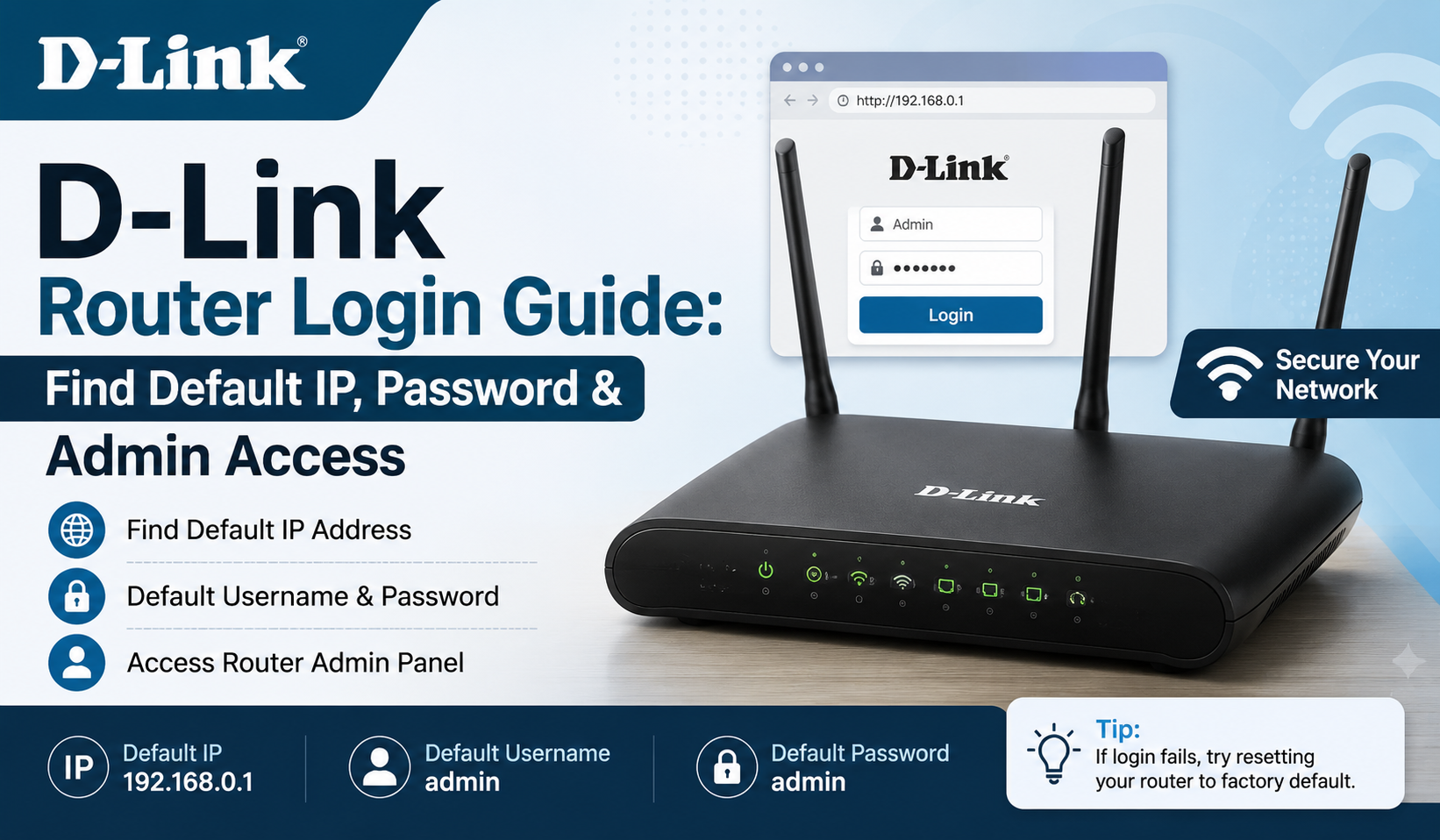
D-Link Router Login. Managing your D-Link router starts with knowing how to log in. Once you are inside the admin panel, you can change your Wi-Fi settings, improve security, and control how your network works. This guide walks you through every step from finding the right IP address to securing your router after your first login.
Whether you are setting up a brand-new router or troubleshooting an existing one, the steps are simple and most users complete the full process in under five minutes.
Default IP Address for D-Link Routers
Open a browser and type the router’s IP address into the address bar. Here are the most common addresses to try:
| IP Address | Usage % | Notes |
|---|---|---|
| 192.168.0.1 | 87% | Most common try this first |
| 192.168.1.1 | 8% | Second most common |
| 192.168.10.1 | 2% | Used by DSR-series routers |
| 192.168.0.50 | <1% | Less common models |
| 192.168.1.254 | <1% | Less common models |
You can also use hostname-based access:
- Type dlinkrouter or dlinkrouter.local directly in your browser
- Your device must be connected to the same Wi-Fi network as the router
- If you don’t know the IP, check the sticker on the back of the router
Default Login Credentials
| Username | Password | Usage % |
|---|---|---|
| (blank) | admin | 41% |
| admin | admin | 31% |
| (blank) | Admin | 23% |
| admin | password | 1% |
| admin | (blank) | 1% |
Tips:
- Start with admin / admin it works on most models
- Try leaving the username blank if admin doesn’t work
- Newer devices may have no password and use a setup wizard instead
- If nothing works, do a factory reset to restore default credentials
Default Password List by Model
| Series | Default IP | Username | Password |
|---|---|---|---|
| DIR-series (most) | 192.168.0.1 | admin | admin or blank |
| DI-series (older) | 192.168.0.1 | admin | (blank) |
| DSR-250N, DSR-500, DSR-1000 | 192.168.10.1 | admin | admin |
| DSA-3100, DSA-3200, DSA-5100 | 192.168.0.40 | admin / manager | admin / manager |
| COVR, M-series, R-series | 192.168.0.1 | (none) | Setup wizard |
| G2562DG | 10.0.0.2 | admin | admin |
| M30 / M60 | 192.168.200.1 | (none) | Setup wizard |
D-Link Router Login
Step 1: Connect to Your Router
- Use an Ethernet cable for a stable connection
- Wi-Fi works too, but wired is safer when changing settings
- Confirm your device is connected to the router’s network before continuing
Step 2: Open the Router’s IP Address
- Open any browser Chrome, Firefox, Safari, or Edge
- Type 192.168.0.1 in the address bar and press Enter
- You can also try dlinkrouter.local if you don’t know the IP
- Still not loading? Check the router’s bottom sticker for the gateway address
Step 3: Enter Login Credentials
- Enter your username and password from the table above
- Leave the username blank if your model requires it
- If login fails, try other combinations from the default list
- If none work, perform a factory reset
Step 4: Configure Your Settings
- Write down your current settings before making any changes
- Make one change at a time and test before moving on
- Treat the first login as an orientation explore before editing
Physical Setup
- Connect the power adapter and plug the router into an outlet
- Turn it on and wait a few seconds
- Check the front LEDs steady Power light and blinking activity lights mean it’s ready
- Connect your computer to the router with an Ethernet cable
- Open a browser and go to the login page
Change Your Default Password
The default password is printed on the router’s sticker and publicly listed online. Anyone who sees your router can use it to access your admin panel.
How to change it:
- Log in to the admin panel
- Go to Settings and find the Change Password option
- Replace the factory password with a strong, unique one
- Save it in a password manager
Troubleshooting
Login credentials not working
- Try all combinations from the default password list
- If someone else set up the router before, the password may have been changed
- Hold the Reset button on the back for 10 seconds to restore factory settings
IP address not loading
- Try http://dlinkrouter.local
- Try http://dlinkrouterWXYZ: replace WXYZ with the last 4 characters of your MAC address (on the bottom sticker)
- Check your device’s network settings for the actual gateway IP
Login page not loading
- Confirm your device is on the correct network
- Try a different browser or clear your cache
- Restart the router and try again
Locked out after changing a setting
- If the router is still online, log back in and revert the changed setting
- If fully locked out, perform a factory reset
Local Network Settings
Inside the admin panel you can manage:
- LAN Configuration: control how devices connect on your network
- DHCP Toggle: turn automatic IP assignment on or off
- Static IP Assignment: give specific devices a fixed IP address
- DHCP Static IP Table: view all static IP assignments in one place
Conclusion
| Step | What to Do |
|---|---|
| Connect | Use an Ethernet cable for a stable connection |
| Navigate | Enter 192.168.0.1 in your browser |
| Log In | Try admin / admin first |
| Configure | Write down settings before making changes |
| Secure | Change the default password right after first login |