Netgear Router Login: Easy Access Guide 2026
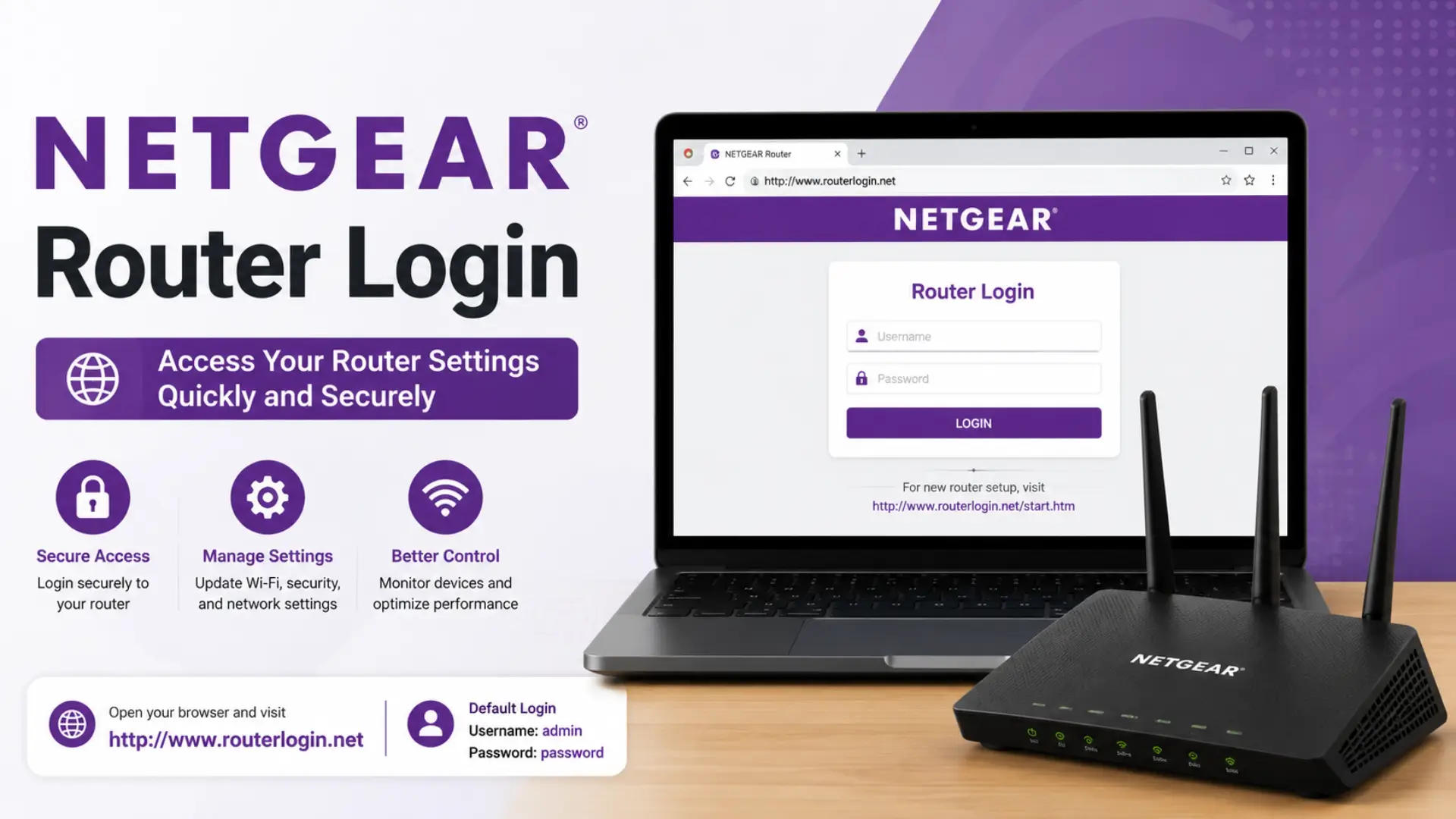
Getting locked out of your router settings is more frustrating than it sounds especially when your entire home network depends on it. Whether you want to change your WiFi password, set up parental controls, or monitor connected devices, everything starts at the NETGEAR router login page.
NETGEAR gives you two reliable ways to get in: the traditional web browser method and the Nighthawk app for smartphones and tablets. Both are straightforward once you know the steps and this guide walks you through everything, including what to do when things go wrong.
How to Access Your NETGEAR Router Login Page
Make sure your device is connected to the router’s network either via WiFi or an Ethernet cable then follow these steps:
- Open your web browser and go to the address bar.
- Type routerlogin.net or routerlogin.com and press Enter.
- If those don’t load, try the fallback IP addresses: 192.168.1.1 or 192.168.0.1.
- Enter your login credentials when the login page appears.
- Click Log In to access the NETGEAR Router Configuration Panel.
Default Login Credentials
| Field | Default Value | Notes |
|---|---|---|
| Username | admin | Case-sensitive use lowercase |
| Password | password | Case-sensitive use lowercase |
| Login URL | routerlogin.net | Or routerlogin.com |
| Fallback IP | 192.168.1.1 | Also try 192.168.0.1 |
If the default credentials don’t work, check the sticker on the bottom of your router your custom admin username and password are often printed there.
Router Login Troubleshooting
When the login page refuses to load, work through these steps in order:
Step 1: Clear Your Browser Cache
Accumulated cache and cookies are the most common cause of login page errors.
| Browser | Steps to Clear Cache |
|---|---|
| Google Chrome | Menu > More Tools > Clear Browsing Data |
| Mozilla Firefox | Menu > Preferences > Privacy & Security > Cookies and Site Data > Clear Data |
| Safari | History (top menu) > Clear History |
Step 2: Switch to the Direct IP Address
- Try 192.168.1.1 in your browser’s address bar
- If that fails, try 192.168.0.1
- Your ISP may have assigned a different gateway IP check your ISP settings to confirm
Step 3: Check Your Connection
- If on WiFi and it’s not loading, switch to an Ethernet cable and try again
- Disconnect from any VPN or corporate network these will block the login page
- Make sure you’re connected to your NETGEAR router, not a neighbor’s network or extender
Step 4: Resolve IP Address Conflicts
If another device on your network shares the same IP as your router, you won’t reach the login page. To fix this:
- Change the IP address on either the router or the conflicting device
- If you have multiple routers or extenders, confirm you’re connected to the correct one
Step 5: Update Your Router Firmware
Outdated firmware can block access to login features entirely. Use the Nighthawk App to push a firmware update, or download it manually from the NETGEAR Download Center.
Step 6: Factory Reset (Last Resort)
If nothing else works especially if you’ve lost your login credentials a factory reset restores all settings to default. Be aware of what this resets:
- WiFi network name (SSID)
- WiFi password
- Security settings
- All personalized configurations
After the reset, log back in and go to ADVANCED > Router Information to find the default gateway IP.
How to Update Your Router Firmware
Keeping firmware up to date is essential each new version includes security patches and bug fixes. The router will notify you automatically when an update is available.
- Go to ADVANCED > Administration > Router Update.
- The firmware update assistant will open click YES if an update is found.
- The new software downloads from the NETGEAR server and installs automatically.
Important: Do not turn off power or reset the router during the update. The process takes about 2 minutes, after which the router reboots automatically.
Router Login for Orbi WiFi Mesh Systems
Orbi mesh systems use a slightly different setup. You have two access methods:
| Method | How to Use | Best For |
|---|---|---|
| Orbi App | Download the app, connect to Orbi WiFi, sign in | Mobile management on the go |
| Web Browser | Visit orbilogin.com from any connected device | Full settings access from desktop |
Both methods provide full control, including mesh satellite configuration and network-wide settings.
Nighthawk App: Mobile Router Management
The Nighthawk app is the easiest way to manage your router from a smartphone or tablet. All recent Nighthawk routers support it.
Getting started:
- Download the Nighthawk app from the App Store, Google Play, or nighthawk-app.com.
- Connect your mobile device to your NETGEAR router’s WiFi network.
- Open the app, sign in with your NETGEAR account, and start managing your settings.
With the Nighthawk app you can:
- Monitor connected devices
- Push firmware updates
- Configure WiFi settings
- Set up parental controls
- Manage network security
Note: The older Genie App is no longer supported. Use the Nighthawk App instead.
Frequently Asked Questions
What are the default login credentials for NETGEAR routers?
The default username is admin and the default password is password. Both are case-sensitive (all lowercase). These apply to most NETGEAR routers out of the box, unless they’ve been changed.
How do I use the Password Recovery feature?
- Go to routerlogin.net or use 192.168.1.1 as a fallback.
- When the Authentication Required dialog appears, click Cancel.
- On the Router Password Recovery page, enter your router’s Serial Number (printed on the back).
- Click Continue, then answer your two security questions.
- Click Continue again your password will be recovered.
What if I never set up Password Recovery? A factory reset is the only option. This restores the default credentials (username: admin, password: password). All custom settings will be erased.
Should I update firmware if I’m having login issues? Yes. Outdated firmware is a genuine cause of login problems. Check for updates via ADVANCED > Administration > Router Update, or through the Nighthawk App.