PTCL Router Login & Settings Guide
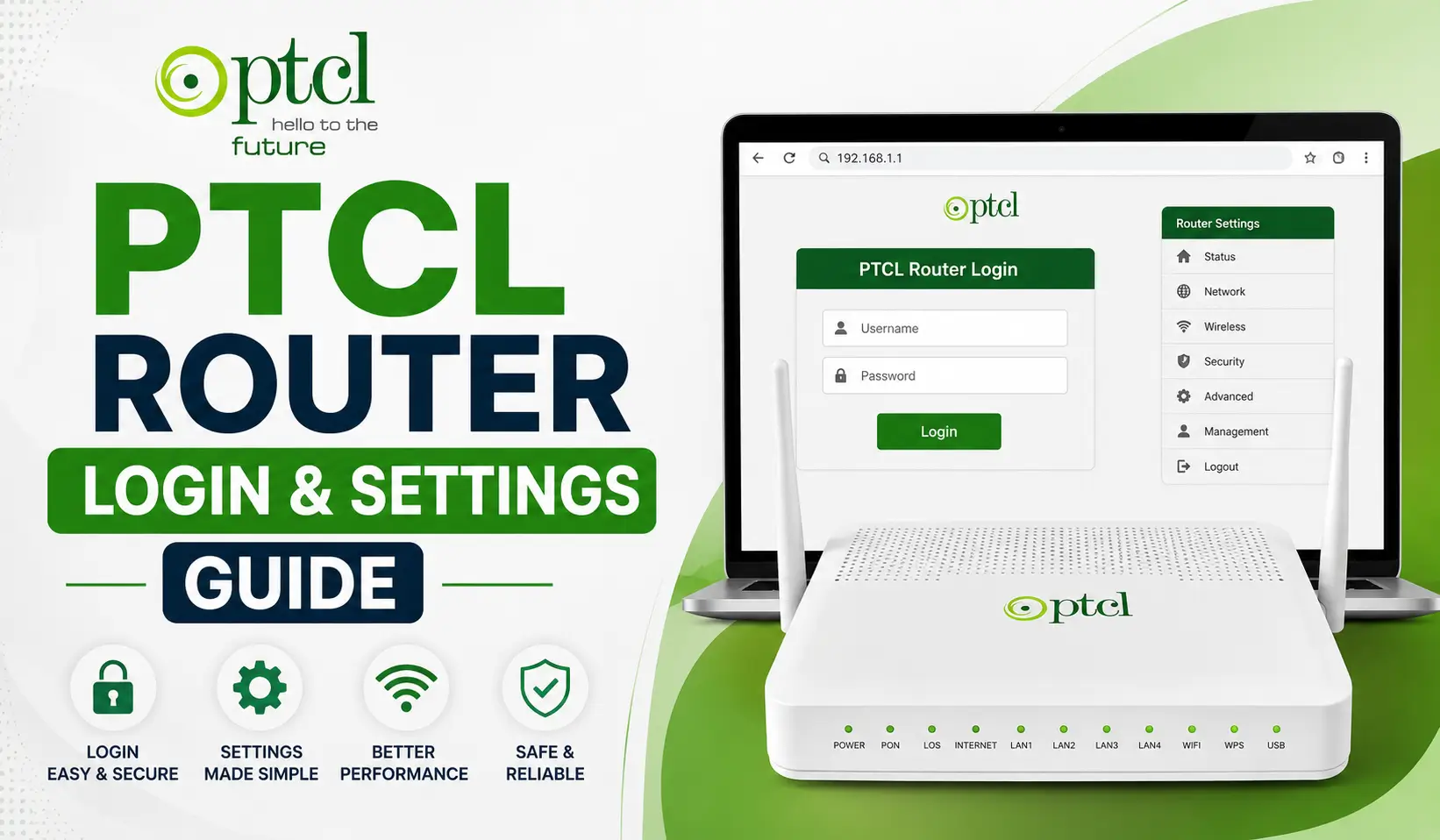
PTCL Router Login & Settings Guide. Getting into your PTCL router settings does not have to be complicated. Whether you are setting it up for the first time or just need to change your Wi-Fi password, the process is straightforward once you know where to look.
This guide walks you through everything, from logging in to fixing common issues, so you can get in and get it done without any hassle.
PTCL Router Login Step by Step Guide
Before you start, make sure your device is connected to the router either through Wi-Fi or an Ethernet cable. Then follow these steps:
- Open your preferred web browser, Chrome, Firefox, or any other
- Type http://192.168.10.1 into the address bar and press Enter
- If that does not load, try http://192.168.1.1 instead
- A login prompt will appear, enter your credentials
Note: Do not type 192.168.o.1 with the letter “O” instead of the number “0”. It will not work.
Once the prompt appears, use the following default credentials:
| Field | Default Value |
|---|---|
| Username | admin |
| Password | admin |
| Password (Newer Models) | Last 5 digits of MAC address |
The MAC address and IP address are both printed on the physical sticker on the bottom of your router.
Troubleshooting Login Issues
Most login issues come down to one of two things, either the page is not loading or the password is not working. Here is how to fix both:
Page Not Loading
- Check your network connection first
- Make sure your browser is not loading a cached or wrong address
- Confirm you are typing the correct IP address with the number 0, not the letter O
Invalid Password Error
- Flip your router upside down and read the sticker carefully
- The label shows the exact default username, password, and IP address for your specific device
- On newer models, the password is the last 5 digits of the MAC address printed on that sticker
Forgot Your Password After Changing It
- Locate the small reset button on the back or bottom of the device
- Press and hold it with a pin or paperclip for 10 seconds
- Release it and wait for the router to reboot
- The router will restore all factory default credentials
Managing Settings
Once you are logged in, here is where to find the most common settings:
| Task | Navigation Path |
|---|---|
| Change Wi-Fi Name | Home > Wireless > Basic |
| Change Wi-Fi Password | Home > Wireless > Security |
| Manage Device Access | Home > Wireless > Security |
| Update Network Configuration | Home > Wireless > Basic |
Always click Apply or Save after making any changes, otherwise your updated settings will not be saved.